# Changing your password

Tablion users are able to change their password after signing up. Users may wish to change their password:

* If it is weaker than required by their organisation
* When compromise is suspected
* After a data breach
* If it has been shared or leaked

### How to change your password

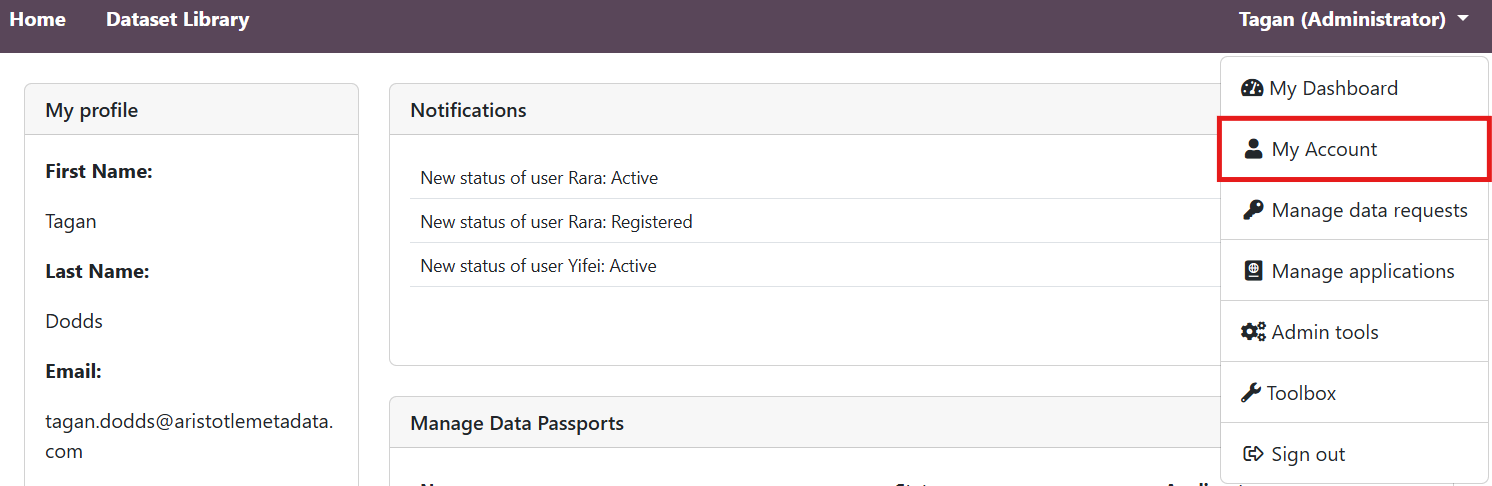
1. Select 'My Account' from your username dropdown.

<figure><img src="https://683603551-files.gitbook.io/~/files/v0/b/gitbook-x-prod.appspot.com/o/spaces%2FPeaKzA2mZwMc13WvgBV9%2Fuploads%2FYbTKTqbZkf0FVqQsDKVK%2Fimage.png?alt=media&#x26;token=ffb9c99d-b028-4a67-b9bd-3506bac10f5c" alt=""><figcaption></figcaption></figure>

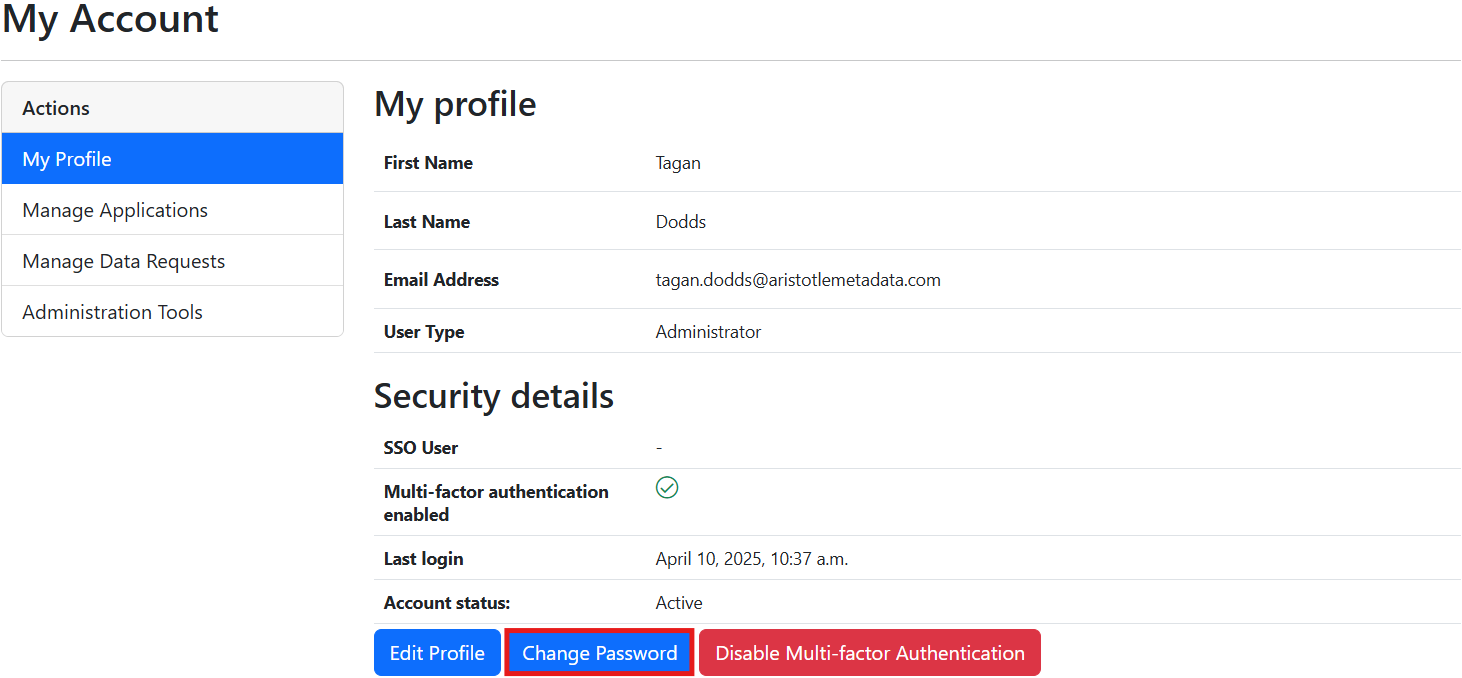
2. Select 'Change Password'.

<figure><img src="https://683603551-files.gitbook.io/~/files/v0/b/gitbook-x-prod.appspot.com/o/spaces%2FPeaKzA2mZwMc13WvgBV9%2Fuploads%2F0hefHfqDQLpLWvAxylAo%2Fimage.png?alt=media&#x26;token=d294828f-b435-40d0-a606-99d78051cf11" alt=""><figcaption></figcaption></figure>

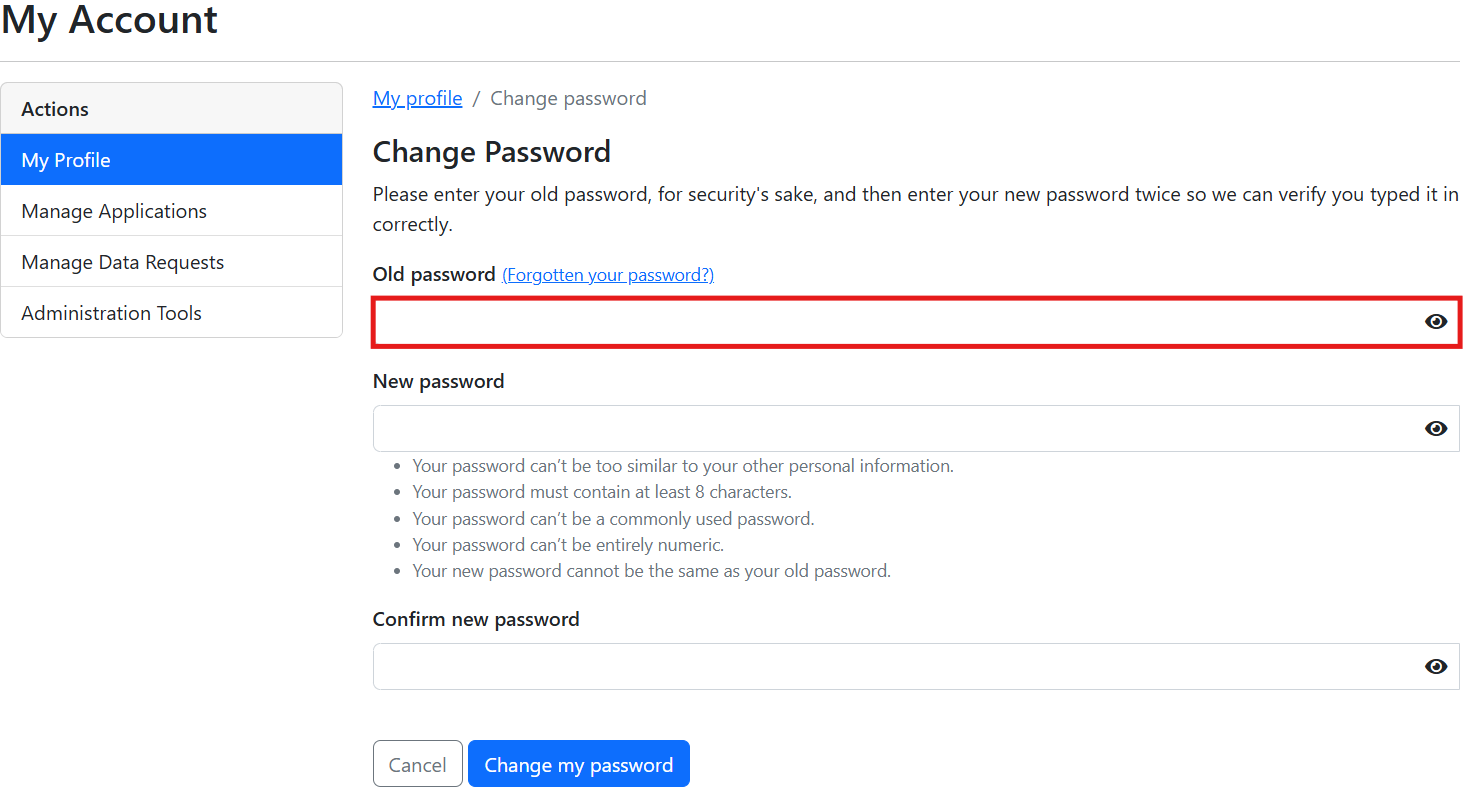
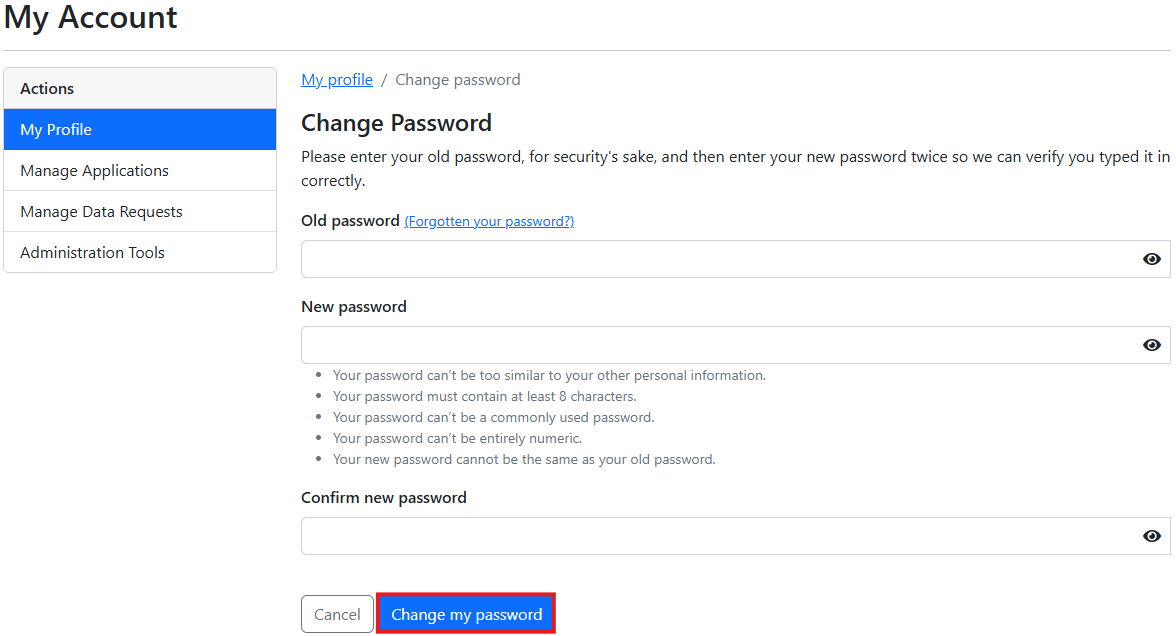
3. Populate the 'Old password' field with your current password.

<figure><img src="https://683603551-files.gitbook.io/~/files/v0/b/gitbook-x-prod.appspot.com/o/spaces%2FPeaKzA2mZwMc13WvgBV9%2Fuploads%2FTyvkFGT6FbfaDuvgzUtb%2Fimage.png?alt=media&#x26;token=54d50ea2-f295-4bd3-9a47-71450ff0e90c" alt=""><figcaption></figcaption></figure>

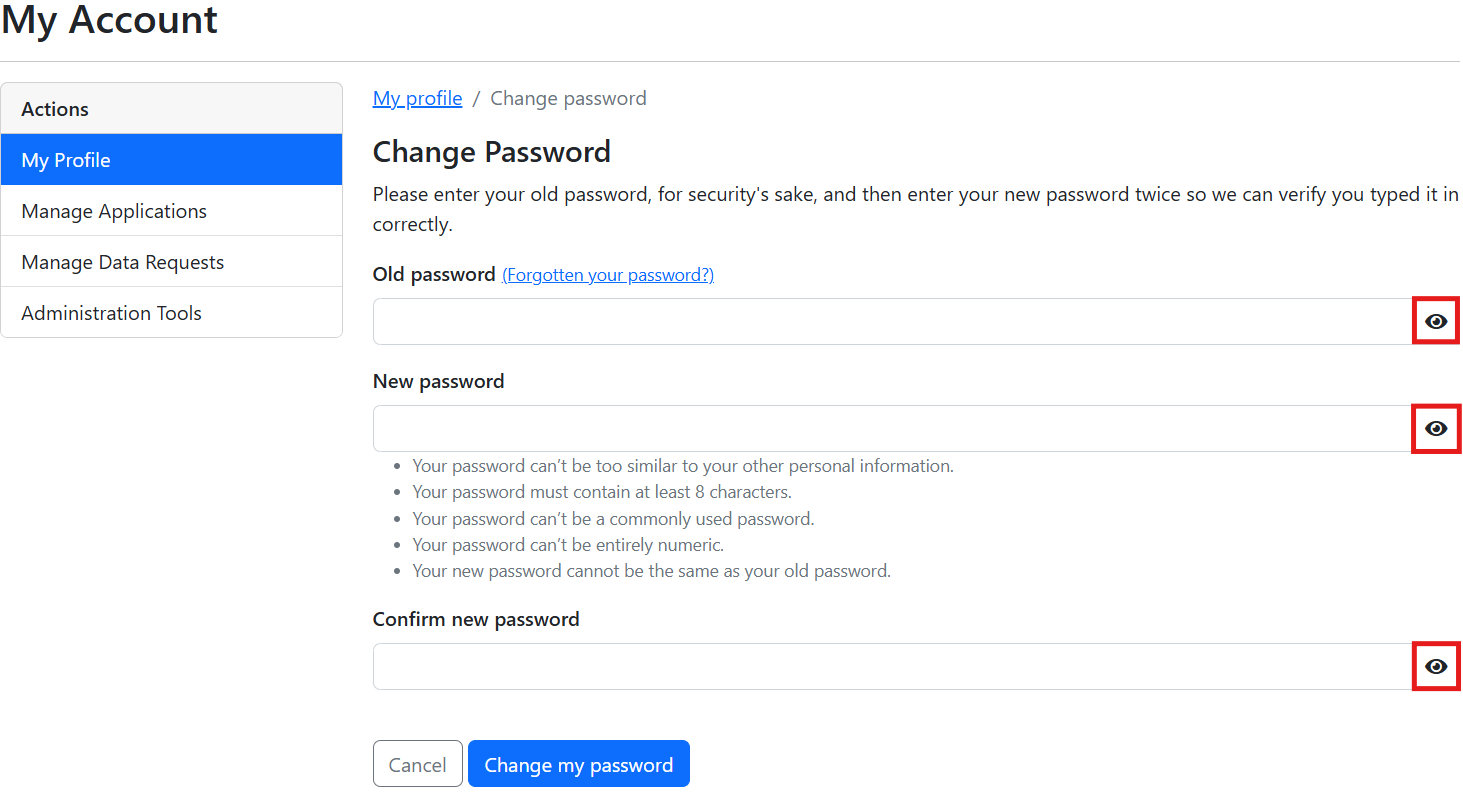
**Note:** Select any of the eye icons (below) to toggle password visibility for all fields of the 'Change Password' page.

<figure><img src="https://683603551-files.gitbook.io/~/files/v0/b/gitbook-x-prod.appspot.com/o/spaces%2FPeaKzA2mZwMc13WvgBV9%2Fuploads%2FgdAKSh8Z8DiVDvMqDaqQ%2Fimage.png?alt=media&#x26;token=dedbe92e-308b-4a44-b988-4ea1d35cabce" alt=""><figcaption></figcaption></figure>

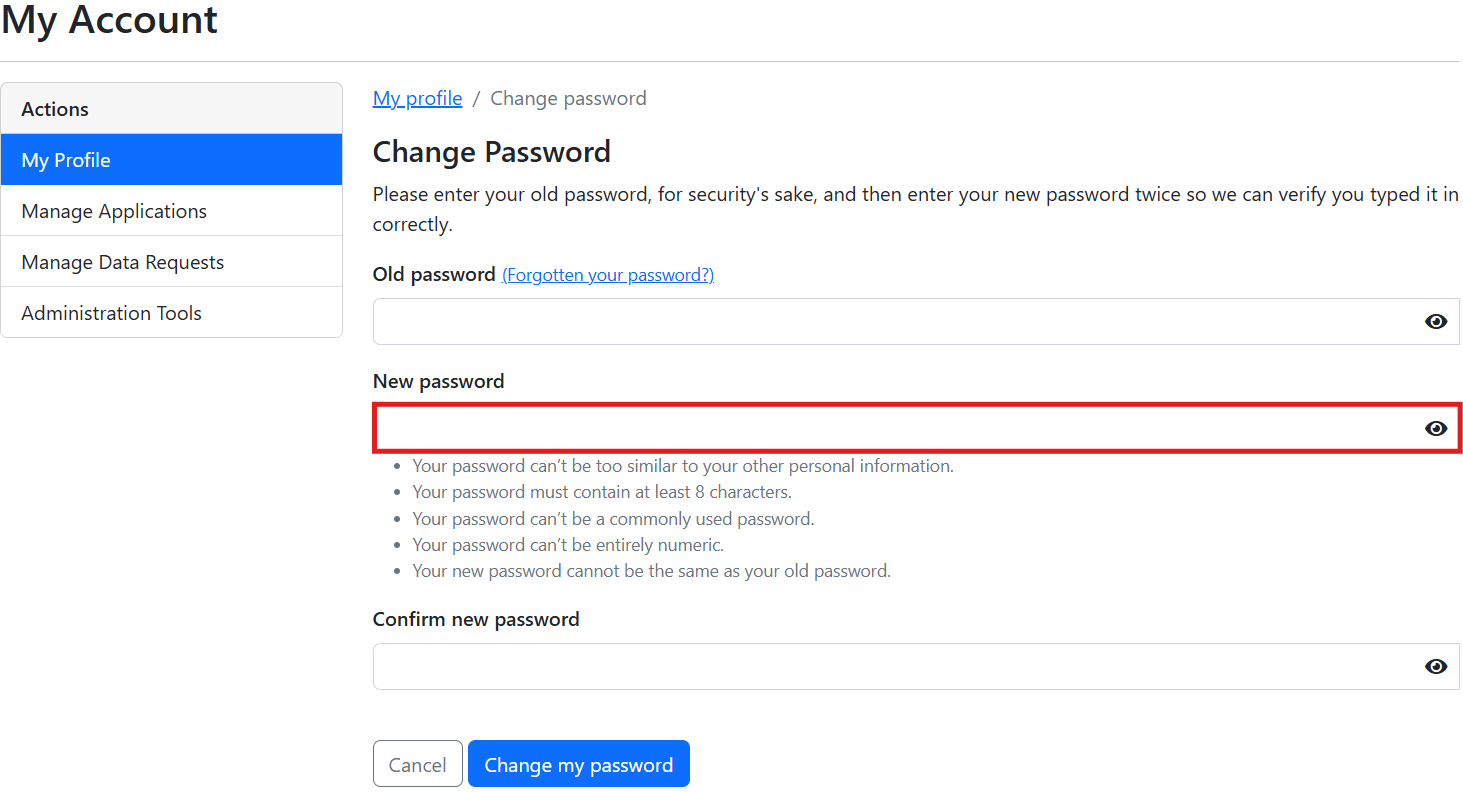
4. Populate the 'New password' field with the password you wish to use, ensuring this new password contains at least 8 characters, and is not:
   * Too similar to your other personal account information
   * A commonly used password
   * Entirely numeric
   * The same as your current password.

<figure><img src="https://683603551-files.gitbook.io/~/files/v0/b/gitbook-x-prod.appspot.com/o/spaces%2FPeaKzA2mZwMc13WvgBV9%2Fuploads%2FW8G8fiWkSAdcuT0qLJlz%2Fimage.png?alt=media&#x26;token=4c54aee9-01f1-44bf-adc7-77bda5a52d44" alt=""><figcaption></figcaption></figure>

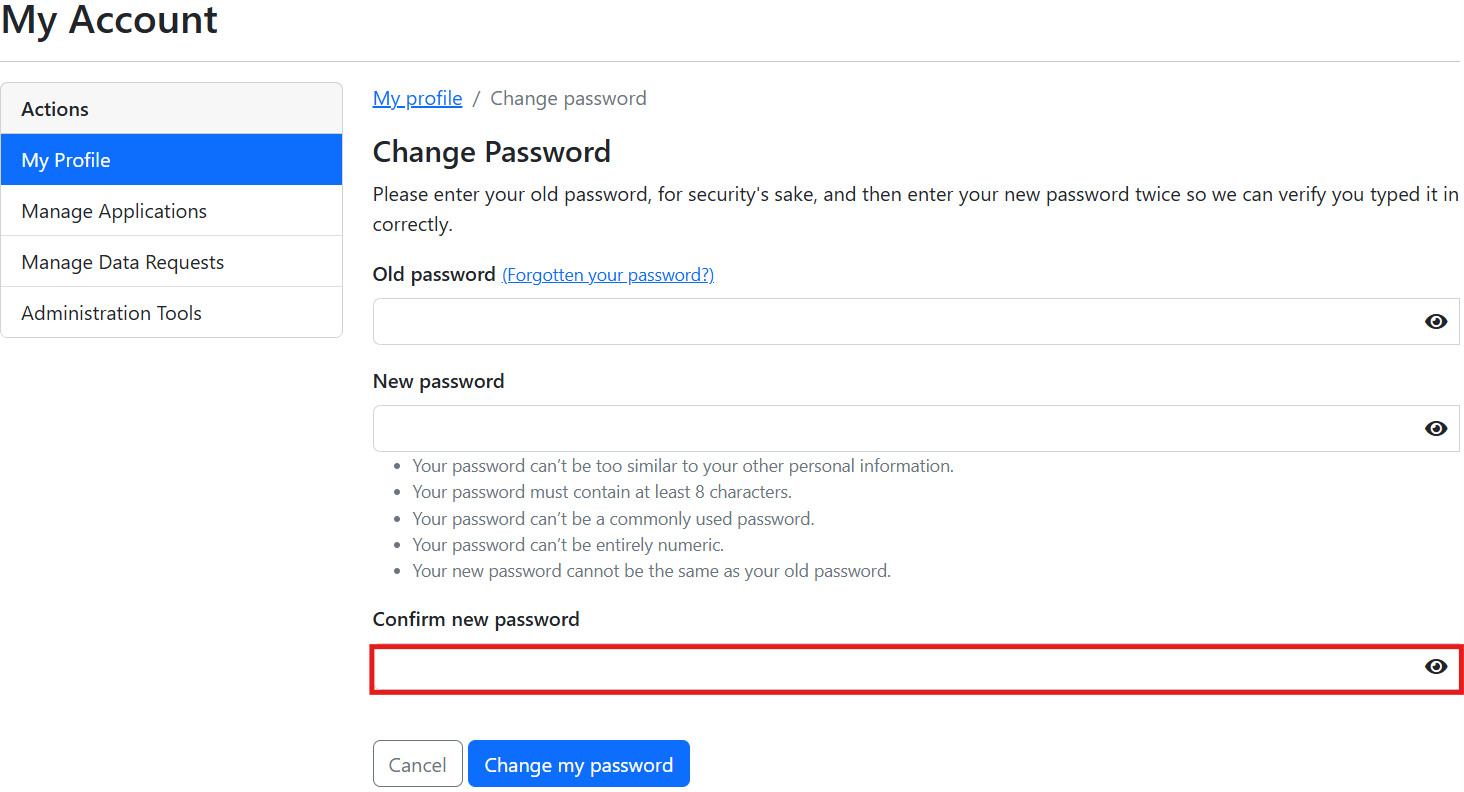
5. Populate the 'Confirm new password' field with the same password you entered into the 'New password' field, ensuring they match exactly.

<figure><img src="https://683603551-files.gitbook.io/~/files/v0/b/gitbook-x-prod.appspot.com/o/spaces%2FPeaKzA2mZwMc13WvgBV9%2Fuploads%2FmK8UnkFccYQFKL81hDdD%2Fimage.png?alt=media&#x26;token=78b0a5b2-57c4-4097-b675-ccafdf1ed6ae" alt=""><figcaption></figcaption></figure>

6. Select 'Change my password'. An email confirming you made this change will be sent to your account's associated email address (no action is required, as you did make this change).
<figure><img src="https://683603551-files.gitbook.io/~/files/v0/b/gitbook-x-prod.appspot.com/o/spaces%2FPeaKzA2mZwMc13WvgBV9%2Fuploads%2FUfiEzAggStcw3TLmIOF4%2Fimage.png?alt=media&#x26;token=32466add-75ab-4238-87eb-9fd75fb93c3e" alt=""><figcaption></figcaption></figure>